Help

Frequently Asked Questions (FAQs)

How does the Family Roll Call service work?

Family Roll Call subscribers register their email address and mobile phone number (optional) and select a Check In Time. Subscribers then add followers and select them to receive mobile phone text message and/or email alerts when the subscriber has not checked in by a certain time each day. Subscribers get a reminder message two hours before Check In Time if they have not already checked in for the day.

What is the difference between subscribing through the website versus the Apple iOS app? (Step-by-step instructions)

In April 2025, Family Roll Call added the ability to subscribe to the service using Apple iOS subscriptions. Subscriptions through this website or Apple are supported. Google Play Andriod subscriptions will be added in the future.

The main differences between an Apple iOS subscription versus a website subscription:

  • Payments, renewals, and refunds are handled through Apple.
  • Initial account setup is performed within your Apple device, not the website.
  • Though not required, Apple iOS subscribers can create a website password after setting up their account by selecting Sign In > Forgot your password? from the menu.

Apple Subscription

Follow these steps to subscribe using an Apple iOS subscription:

  1. Download the Family Roll Call app from the Apple App Store using your iPhone or iPad.
  2. Open the app and tap either a "Yearly" or "Monthly" subscription option.
  3. You will be prompted to confirm the indicated purchase. NOTE: There is a free one week trial.
  4. Once purchased, you will see a "You're all set. Your purchase was successful." message.
  5. Tap "OK" to proceed into the app.
  6. Tap "Settings" using the bottom menu and enter your:
    • Name - the name used to alert your followers if you go missing.
    • Email - your email address for reminders and any account notifications.
    • Mobile Phone number - for text message reminders 2 hours prior to Check In Time if you have not already checked in for the day.
    • Check In Time and Time Zone - the time each day by which you must Check In to prevent your followers from being alerted. Be sensitive to the time when your followers will get texted or emailed if you go missing.
  7. Tap "Followers" in the bottom menu.
  8. Tap "Add Follower" and enter a follower's email address and phone number.
  9. Tap "Save" to save the follower.
  10. Add any additional followers.
  11. Tap "Check In" in the bottom menu. This is where you will Check In each day. A green check mark indicates that you are checked in for the day and followers will not be alerted that you are missing.
  12. You can install the Family Roll Call app on additional Apple iPhone and iPad devices. After opening a newly installed app, tap "Restore Purchase."

Website Subscription

  1. Click Register in the Family Roll Call website header to register through the website.
  2. Complete the form including agreeing to the terms and conditions and click "Proceed to Checkout".
  3. Provide valid credit card information.
  4. Once purchase is complete, a "Thank you for joining Family Roll Call!" confirmation page will appear and instruct you to check your email for a confirmation message.
  5. Open the email and click the link provided to verify your email address.
  6. You will next be taken to "Settings" to set a Check In Time.
    Important: Be sure to check the Time Zone selected.
  7. Next, add followers to receive emails and/or text messages when you are missing.
  8. Use the website or reminder messages to Check In daily.
    Optionally, pair your mobile device to the Family Roll Call app to make it even easier to Check In every day.

TIP: You can suspend service. for example when visiting family, by setting a Vacation Mode date.

How do I Check In?

Family Roll Call website subscribers can Check In using any of these three methods:

Mobile App

  1. Open the Family Roll Call mobile app on your device. Tip: Apple device users can command Siri: "Open Family Roll Call."
  2. Click the round button on the Check In tab.
The gray check mark on the round button will turn green if the Check In was successful.

Reminder Emails
You will receive a reminder email two hours prior to your Check In Time if you have not already checked in for the day. The email contains a temporary link to Check In. Select the link and a browser page will open and confirm the successful Check In.

Website
  1. Sign into the website at https://familyrollcall.com.
  2. Click the round button on the Check In page.
The gray check mark on the round button will turn green if the Check In was successful.

What if I forget to Check In?

Two hours prior to Check In Time, you will receive a text and/or email like this:

Reminder_Text

If you still do not Check In by your Check In Time, you will receive an alert like this:
You_are_missing
...and your followers will be notified:
You_are_missing
Once you Check In after going missing, your followers will receive a notification that you are OK and the alarm is cleared.
OK_Text

Do followers need to register? What do followers see?

No, followers do not need to register. They do not need an app or any special software. Followers receive a text message and/or email when a subscriber goes missing. For example, if the subscriber's name is "Derek," and he does not Check In by his Check In Time, his followers will see a text and/or email like this:

Derek_Missing

The followers can then attempt to make contact to ensure the subscriber is OK. When Derek finally Checks In, followers will see a message like this:
Cleared_Text

How many followers can I have?

You can have up to 5 followers.

Can followers opt out of receiving text messages?

Yes, followers can reply "STOP" to any alert text message from Family Roll Call to no longer receive text alerts from your account. Be sure to let your followers know that you are a Family Roll Call subscriber and you'd like their permission to be your follower.

Can I temporarily disable alerts?

Yes, under "Settings," select a date under the "Vacation Mode" heading for when you would like to resume service. Our subscribers typically suspend service when visiting family members during vacations.

Can I be reminded to Check In before my followers are alerted?

Yes, we will send you a reminder email and/or text message, depending on your settings, if you have not checked in within two hours of your Check In Time.

Is there a mobile app? What functions does it perform?

Yes, there is a mobile app for iOS (iPhones and iPads) available in the Apple App Store and an Android app available in Google Play.

Website Subscribers
After installing the mobile app, go to the "Settings > Pairing Code" page on the https://familyrollcall.com website. A pairing code will be generated and sent via email. Within the app, use your customer number and pairing code to link your mobile device to your Family Roll Call account. Tap the "Enter Pairing Code" button if using iOS:
Enter_Pairing_Code

All Subscribers
Within the app, you can:

  1. Check In/Clear Missing Alert/Clear Panic Alert
  2. Add/Edit Followers
  3. Change Account Settings
    • Check In Time
    • Vacation Mode
  4. Activate Panic Alert - Immediately alert all followers. If permissions are granted on the mobile device to use location services, a link to a map with the subscriber location will be included with panic alerts.


mobile_screenshot

How do I get my customer ID and pairing code for the mobile app?

This step is not required for Apple iOS subscribers.

Website Subscribers Only
After installing the Family Roll Call mobile app on your iPhone, iPad, or Android phone or tablet, follow these steps to pair your account:

  1. Navigate to the "Settings > Pairing Code" page on the Family Roll Call website.
  2. Click the "Get Pairing Code" button.
  3. Follow the on-screen instructions:
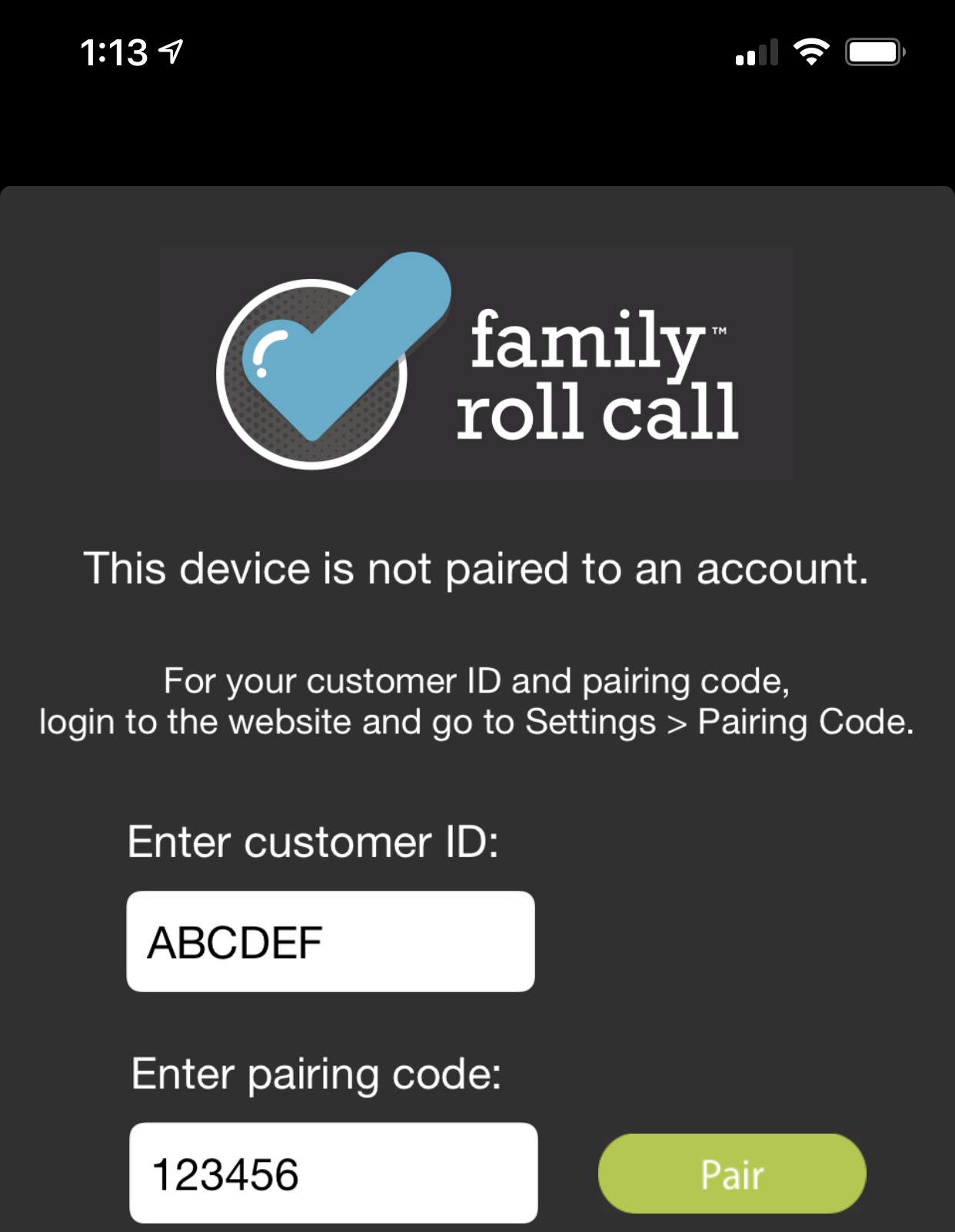
    • You will see your customer ID to be used in the "customer ID" field in the mobile app.
    • You will receive an email with your pairing code. Enter this code into the "pairing code" field in the mobile app.

mobile_screenshot


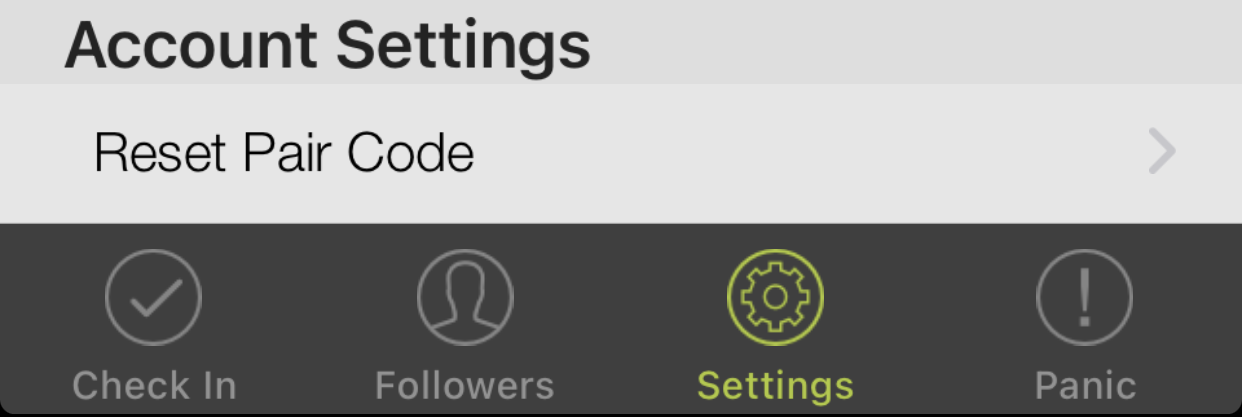
You can enter the same customer ID and pairing code within the Family Roll Call app on all your devices. If you've already paired a device, but want to add more devices, you can click "Settings > Reset Pair Code" within the mobile app, then enter the customer ID and new pairing code.

mobile_screenshot

Why did I receive an alert at a different time than expected?

In addition to selecting the desired Check In Time, remember to choose the correct time zone in the "Settings" area of the website or mobile app. It's helpful to scan for a major city that you know is in the same time zone:


TIP: Be mindful of your followers when choosing a Check In Time. Followers will be alerted at the Check In Time if you are missing.

Will my subscription automatically renew?

Apple Subscription

Yes, subscriptions will renew either monthly or annually depending on your chosen subscription. Changes in credit card expiration dates are typically updated automatically by your credit card company. You can always check the credit card associated with your account on your iPhone or iPad by tapping Settings > your name > Payment & Shipping.

Website Subscription

Yes, after one year, your subscription will automatically renew. You will be contacted if payment information needs to be updated. Changes in credit card expiration dates are typically updated automatically by your credit card company. You can always check the credit card associated with your account on the Settings > Order History page.

How do I cancel my subscription?

Apple Subscription

From your iPhone or iPad, tap Settings > your name > Subscriptions to cancel your subscription so that it does not renew. You will still be able to use the Family Roll Call service until the end of your current subscription period.

Website Subscription

Click the "Cancel Subscription" button under Settings > Order History. You will still be able to use the Family Roll Call service until the end of your current subscription period.

How does the panic feature work on the mobile app?

Though not a core feature of our daily Check In service, the Panic tab within the mobile app allows a subscriber to immediately alert all followers that the panic alert has been set. If permissions are granted on the mobile device to use location services, a link to a map with the subscriber location will be included with panic alert texts and emails. Authorities are NOT notified, just followers. Panic alerts can be cleared by pressing the Check In button on the Check In tab. Followers are alerted when the panic is cleared. We encourage our users to notify their followers ahead of time if they wish to test this feature.

Panic_tab

How should international mobile phone numbers be formatted?

Phone numbers outside the United States should be formatted with a plus sign (+), country code, area code, and phone number. Any leading zeroes on the country code or area code should be removed. For example, a UK number such as 020 7183 8750 should be formatted as +44 20 7183 8750.

Why is there a subscription fee?

As a service, there is an on-going cost to send mobile text messages and emails through trusted providers. To ensure your privacy and the best delivery quality, we only partner with the industry's best providers that work with mobile phone carriers and email providers. The subscription fee ensures we can maintain this quality of service and provide the best subscriber and follower messaging by allowing us to pay our vendors and sustain and upgrade our platform.

My phone is blocking unrecognized numbers. What number should I add to my Contacts?

If your mobile phone is blocking text messages from unrecognized phone numbers, add this contact record to your Contacts application:

Name: Family Roll Call
Mobile Number: +1 (678) 999-6097


Contact Us